Skip to content Add
Theme and Language Settings in Tauri
Introduction
Theme support and multilingual support are both important for user experience in modern applications. This article explains how to implement native window theme switching and application language switching in a Tauri app.
The previous article introduced local persistence, and this article builds directly on that capability.
Two ways to set a theme
In Tauri, window theme settings can be thought of in two categories:
- static
- dynamic
This refers to the native window theme, not just CSS-level DOM theming.
Static theme
A static theme is defined at startup and does not change while the app is running.
Example in tauri.conf.json:
json
{
  "tauri": {
    "windows": [
      {
        "theme": "Light"
      }
    ]
  }
}
Reference: https://tauri.app/v1/api/config/#theme
Dynamic theme
Dynamic theming allows users to switch themes while the app is running. This is usually the better experience.
Tauri itself does not expose a built-in dynamic theme API in the exact form needed here, but an open-source plugin makes it possible.
Implementing theme switching
The overall flow looks like this:
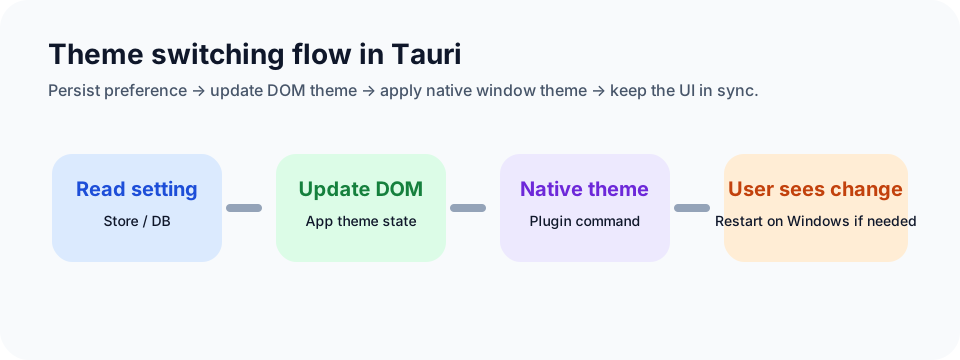
Add tauri-plugin-theme
Reference:
https://github.com/wyhaya/tauri-plugin-theme
The usage differs slightly between Tauri v1 and v2. The example here uses v1.
Add the dependency:
toml
tauri-plugin-theme = "0.2.0"Then register it in the main process:
rust
#![cfg_attr(not(debug_assertions), windows_subsystem = "windows")]

use tauri_plugin_theme::ThemePlugin;

#[tauri::command]
fn greet(name: &str) -> String {
    format!("Hello, {}! You've been greeted from Rust!", name)
}

fn main() {
    let mut ctx = tauri::generate_context!();
    tauri::Builder::default()
        .plugin(tauri_plugin_sql::Builder::default().build())
        .plugin(ThemePlugin::init(ctx.config_mut()))
        .invoke_handler(tauri::generate_handler![greet])
        .run(ctx)
        .expect("error while running tauri application");
}
Core frontend logic
In App.tsx, the global DOM theme is synchronized with the UI framework:
tsx
import { HashRouter } from "react-router-dom";
import { ConfigProvider, theme } from "antd";
import { ConfigProvider as SemiConfigProvider } from "@douyinfe/semi-ui";
import { useEffect, useState } from "react";
import Router from "./routes";
import GlobalContext from "./context/global";
import { getStore, setStore } from "./bridge";

function App() {
  const [themeData, setThemeData] = useState("");

  const changeTheme = (val: "darkAlgorithm" | "defaultAlgorithm") => {
    setThemeData(val);
    setStore("theme", val);
    const body = document.body;
    if (val === "darkAlgorithm") {
      body.setAttribute("theme-mode", "dark");
    } else {
      body.removeAttribute("theme-mode");
    }
  };

  useEffect(() => {
    const initData = async () => {
      try {
        const theme = await getStore("theme");
        if (theme) {
          changeTheme(theme as "defaultAlgorithm" | "darkAlgorithm");
        } else {
          changeTheme("defaultAlgorithm");
        }
      } catch (error) {
        console.error(error);
        changeTheme("defaultAlgorithm");
      }
    };
    initData();
  }, []);

  return themeData ? (
    <ConfigProvider
      theme={{
        algorithm:
          themeData === "darkAlgorithm"
            ? theme.darkAlgorithm
            : theme.defaultAlgorithm,
      }}
    >
      <SemiConfigProvider>
        <GlobalContext.Provider
          value={{
            changeTheme,
            themeData,
          }}
        >
          <HashRouter>
            <Router />
          </HashRouter>
        </GlobalContext.Provider>
      </SemiConfigProvider>
    </ConfigProvider>
  ) : null;
}

export default App;
Then build a ThemeIcon component to let users switch manually:
tsx
import GlobalContext from "@/context/global";
import { IconMoon, IconSun } from "@douyinfe/semi-icons";
import { Button, Modal } from "@douyinfe/semi-ui";
import { invoke } from "@tauri-apps/api/tauri";
import { useContext } from "react";
import { platform } from "@tauri-apps/api/os";
import { useTranslation } from "react-i18next";

type Theme = "auto" | "light" | "dark";

const setNativeTheme = (theme: Theme) => {
  setTimeout(() => {
    invoke("plugin:theme|set_theme", {
      theme,
    }).catch((err) => {
      alert(err.toString());
    });
  }, 100);
};

const ThemeIcon = () => {
  const { changeTheme, themeData } = useContext(GlobalContext);
  const [modal, contextHolder] = Modal.useModal();
  const { t } = useTranslation();

  const changeThemeAction = async () => {
    const doAction = () => {
      if (themeData === "darkAlgorithm") {
        changeTheme("defaultAlgorithm");
        setNativeTheme("light");
      } else {
        changeTheme("darkAlgorithm");
        setNativeTheme("dark");
      }
    };

    const platformName = await platform();
    if (platformName === "win32") {
      modal.confirm({
        title: t("SwitchTheme"),
        content: t("Switching themes requires restarting the application. Do you want to continue?"),
        okText: t("Confirm"),
        cancelText: t("Cancel"),
        onOk: () => {
          doAction();
        },
      });
    } else {
      doAction();
    }
  };

  return (
    <>
      <Button
        theme="borderless"
        style={{
          color: "var(--semi-color-text-2)",
        }}
        icon={themeData === "darkAlgorithm" ? <IconSun /> : <IconMoon />}
        onClick={() => changeThemeAction()}
      />
      {contextHolder}
    </>
  );
};

export default ThemeIcon;
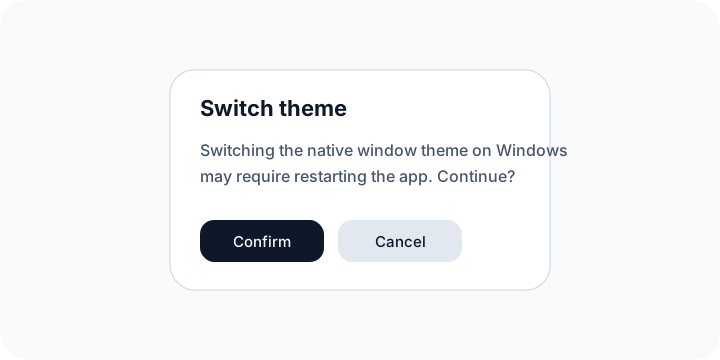
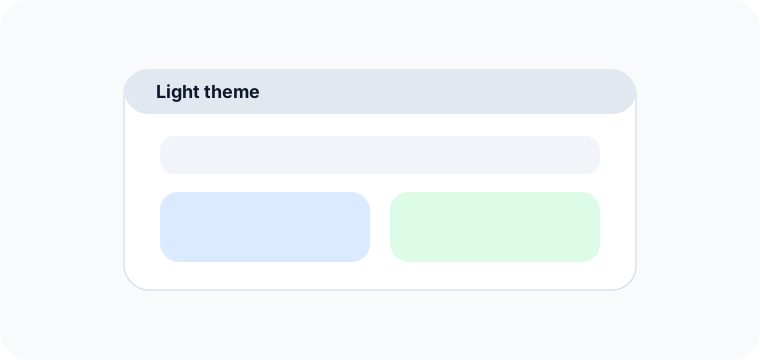
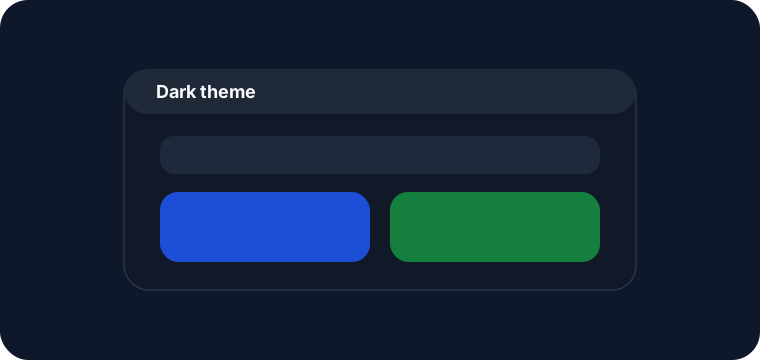
On Windows, switching the native theme requires restarting the app, so the user is prompted first. On macOS the transition can feel much smoother.
Implementing multilingual support
Language handling is split into two parts:
- language inside the web page itself
- language in native UI such as titles and menus
This article focuses on the page-level language system. Native menu language is covered separately because it touches the menu system directly.
The page-level part is similar to normal web i18n work:
- install dependencies
- create language files
- initialize i18n
- switch language through i18n
Initialize language files
typescript
import i18n from "i18next";
import { initReactI18next } from "react-i18next";
import enUsTrans from "./en-us.json";
import zhCnTrans from "./zh-cn.json";

i18n.use(initReactI18next).init({
  resources: {
    en: {
      translation: enUsTrans,
    },
    zh: {
      translation: zhCnTrans,
    },
  },
  detection: {
    order: ["queryString", "cookie"],
    caches: ["cookie"],
  },
  fallbackLng: "zh",
  debug: false,
  interpolation: {
    escapeValue: false,
  },
});

export default i18n;
Switch language
typescript
const changeLang = (lang?: string) => {
  if (lang) {
    setStore("lang", lang);
    setCurrentLang(lang);
    i18n.changeLanguage(lang);
  } else {
    if (currentLang === "zh") {
      setStore("lang", "en");
      setCurrentLang("en");
      i18n.changeLanguage("en");
    } else {
      setStore("lang", "zh");
      setCurrentLang("zh");
      i18n.changeLanguage("zh");
    }
  }
};
At that point, the page-level multilingual behavior is mostly in place.
Source code
https://github.com/Xutaotaotao/XTools/tree/feature-theme-lang
Summary
This article covered both theme switching and language switching in a Tauri application.
The main takeaways:
- native window themes can be static or dynamic
- dynamic theme switching can be implemented through a plugin
- persisted theme state improves the overall UX
- multilingual support on the web side can be implemented with a standard i18n workflow
Together, these features significantly improve usability and help the app feel more polished across different user preferences and markets.