Skip to content
Frontend-Only Image Slicing with One-Click Export
Introduction
In web development, we often run into scenarios where a large image needs to be split into multiple smaller ones, for example:
- optimizing large-image loading by slicing the image and loading pieces on demand
- assembling pixel-perfect visual layouts from smaller tiles
- generating thumbnails of different sizes in mobile web apps
The traditional solution is to do image processing on the server, then return the result to the frontend. But modern browsers provide a powerful canvas API, which means we can implement many image-processing features entirely in the browser.
This article walks through how to build an image-slicing tool with React that lets users split an uploaded image and export all slices with one click.
Feature overview
The tool supports:
- local image upload
- large-image preview
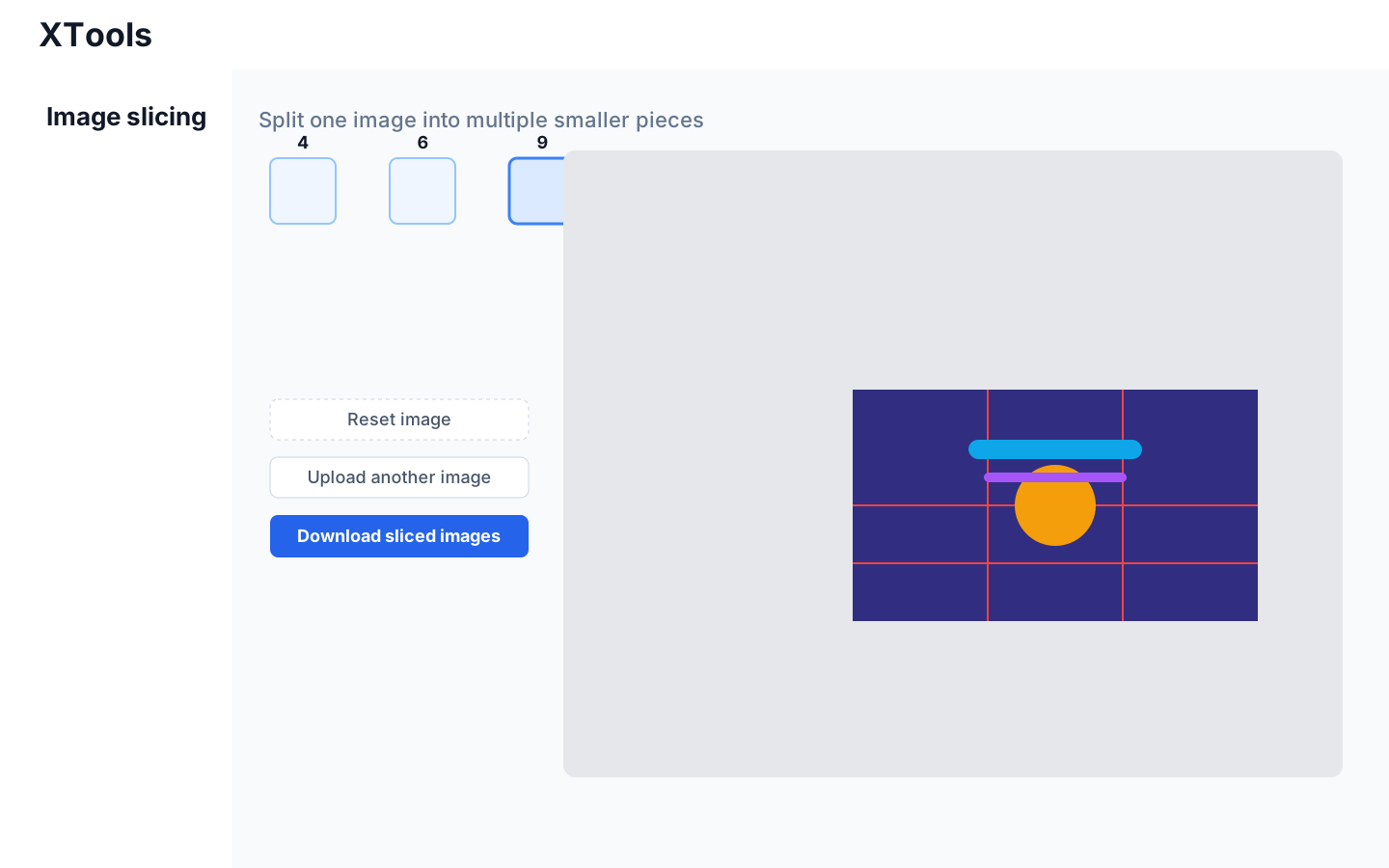
- custom row and column counts
- draggable slicing-line adjustments
- one-click download of all generated image slices
The final result looks like this:
Technical choices
The implementation uses:
- React as the UI framework
- Ant Design as the component library
- canvas for image slicing
- react-draggable for draggable guide lines
- FileReader for local file reading and preview
Implementation steps
Uploading and previewing the image
We first use Ant Design's Upload component to support local image uploads:
jsx
<Dragger
  name="file"
  onChange={filesChange}
  fileList={fileList}
  customRequest={() => {}}
  showUploadList={false}
>
  <p className="ant-upload-drag-icon">
    <InboxOutlined />
  </p>
  <p className="ant-upload-text">Click or drag to upload an image</p>
</Dragger>
Inside filesChange, we use FileReader to read the uploaded image and store it as a Base64 string in currentImg:
jsx
let reader = new FileReader();
reader.readAsDataURL(info.file.originFileObj);
reader.onload = function (e) {
  setCurrentImg(e.target.result);
};
Then we render the preview through an img tag:
jsx
<img ref={imageRef} src={currentImg} onLoad={...} />Once the image finishes loading, we read its naturalWidth and naturalHeight, then compute a scale factor so the preview fits within a controlled area.
Drawing draggable slicing lines
Users need to control both the number of rows and columns and the exact slicing positions. For that, we generate draggable guideline components with react-draggable:
jsx
<Draggable
  axis={axis}
  defaultPosition={defaultPosition}
  handle={`.${handle}`}
  key={key}
  onStop={(e, data) => {
    handleDragOnStop(e, data, key);
  }}
>
  <div style={{ position: "absolute", ...lineStyle, background: "red" }}>
    <div
      className={handle}
      style={{
        ...lineStyle,
        cursor: axis === "x" ? "ew-resize" : "ns-resize",
      }}
    />
  </div>
</Draggable>
These slicing lines are generated dynamically based on the selected row and column counts. Their default positions are calculated like this:
jsx
const xUnitSize = imageSize.width / customX;
const yUnitSize = imageSize.height / customY;

const xDraggableList = createRandomArray(customX - 1).map((item, index) => {
  const position = xUnitSize * (index + 1);
  return { ... };
});

const yDraggableList = createRandomArray(customY - 1).map((item, index) => {
  const position = yUnitSize * (index + 1);
  return { ... };
});
Whenever the user drags a line, we store its latest position in draggableListData.
Slicing the image and generating output images
After the user chooses the row and column counts and adjusts the slicing lines, they can click the download button to perform the actual slicing. The core logic lives in sliceImage:
jsx
const sliceImage = () => {
  const canvas = document.createElement("canvas");
  const context = canvas.getContext("2d");
  ...

  const xLines = draggableListData
    .filter(item => item.axis === "x")
    .map(item => item.newPosition ? item.newPosition.x : item.defaultPosition.x)
    .map(item => Math.round(item / scale))
    .concat(imageWidth)
    .sort((a, b) => a - b);

  const yLines = // same idea for y-axis slicing lines

  for (let y = 0; y < yLines.length; y++) {
    for (let x = 0; x < xLines.length; x++) {
      const sliceX = x === 0 ? 0 : xLines[x - 1];
      const sliceY = y === 0 ? 0 : yLines[y - 1];
      const sliceWidth =
        x === xLines.length - 1 ? imageWidth - sliceX : xLines[x] - sliceX;
      const sliceHeight =
        y === yLines.length - 1 ? imageHeight - sliceY : yLines[y] - sliceY;

      canvas.width = sliceWidth;
      canvas.height = sliceHeight;

      context.drawImage(
        imageRef.current,
        sliceX,
        sliceY,
        sliceWidth,
        sliceHeight,
        0,
        0,
        sliceWidth,
        sliceHeight
      );

      const sliceData = canvas.toDataURL("image/png");
      downloadSlice(sliceData, `slice_${x}_${y}.png`);
    }
  }
};
The main flow is:
- calculate the start coordinates and size of every slice
- create a canvas for the current slice
- draw the corresponding region of the original image onto the canvas
- export the canvas as Base64 PNG data
- trigger a file download for that slice
Downloading the generated slices
The downloadSlice helper is responsible for saving each small image:
jsx
const downloadSlice = (sliceData, fileName) => {
  const link = document.createElement("a");
  link.download = fileName;
  link.href = sliceData;
  document.body.appendChild(link);
  link.click();
  document.body.removeChild(link);
};
What it does:
- create an
aelement - set the
downloadattribute - set the
hrefto the Base64 image data - insert the element into the page
- trigger a click programmatically
- remove the element after download starts
That is enough to download every generated image slice locally.
Summary
This example shows how modern browsers, together with React and the canvas API, can implement image slicing entirely on the frontend without relying on a server.
Key implementation points include:
- using
FileReaderto read local files - previewing the image and reading its size through an
imgelement - using
canvas.drawImage()to slice and export images - using
react-draggableto let users adjust slicing lines interactively - simulating a link click to trigger file downloads
With canvas and modern Web APIs, many image-processing tasks that once had to happen on the server can now be handled directly in the browser. That reduces server pressure and often improves responsiveness.
That said, frontend image processing is not perfect:
- very large images can cause UI lag
- downloads happen client-side and are not persistent storage
- if long-term storage or server-side workflows are required, backend support is still needed
So in real projects, you still need to balance trade-offs based on the actual use case.
Source code
https://github.com/Xutaotaotao/XTools/blob/master/src/pages/imageSlicing.tsx
XTools
- focused tools for efficient workflows
- fully local-first, no cloud dependency, better privacy
- demo: https://taotaoxu.com/XTools/
- GitHub: https://github.com/xutaotaotao/XTools
Anyone interested is welcome to join and build more frontend-only utility tools together.