Skip to content
Full
Add the
Build an AI App Step by Step with Julep and ChatUI
Introduction
Building an AI application from scratch can be a surprisingly difficult task. Whether you want a simple chatbot or a more advanced assistant, getting to a usable product can easily take weeks. This is exactly the kind of situation where Julep becomes helpful.
Julep is a platform for building stateful, functional, LLM-driven applications. With it, you can get a working AI application running with only a small amount of code.
Platforms like OpenAI GPT, Azure Bot Service, and Dialogflow can also be used to build AI applications. What makes Julep stand out is its support for:
- conversation state and context tracking
- convenient integration with multiple LLMs
- a friendly interface for managing users, agents, and sessions
In this article, we will build a small AI movie companion application that can recommend and describe movies based on what the user asks for. The goal is to walk through the core Julep workflow step by step.
Prerequisites
Make sure Node.js is installed on your machine:
Learn more about Julep:
https://github.com/julep-ai/julep/blob/dev/README-CN.md
Create the frontend project
Start by creating a React project:
bash
pnpm create viteThen install ChatUI:
bash
pnpm add @chatui/core -DIn App.tsx, build a minimal chat interface with a <Chat> component:
tsx
<Chat
  navbar={{ title: "Movie Companion" }}
  messages={messages}
  renderMessageContent={renderMessageContent}
  quickReplies={defaultQuickReplies}
  onQuickReplyClick={handleQuickReplyClick}
  onSend={handleSend}
/>
Once the overall structure is there, the rest comes down to filling in a few core methods.
renderMessageContent
tsx
function renderMessageContent(msg: MessageProps) {
  const { type, content } = msg;

  switch (type) {
    case "text":
      return <Bubble content={content.text} />;
    case "image":
      return (
        <Bubble type="image">
          <img src={content.picUrl} alt="Movie-related result image" />
        </Bubble>
      );
    default:
      return null;
  }
}
This uses ChatUI's render hook to display different message types differently.
defaultQuickReplies
tsx
const defaultQuickReplies: Array<QuickReplie> = [
  {
    icon: "message",
    name: "Recommend a comedy",
    isNew: true,
    isHighlight: true,
  },
  {
    name: "Recommend any movie",
    isNew: true,
  },
];
These quick replies help users start interacting immediately.
handleSend and handleQuickReplyClick
tsx
function handleSend(type: string, val: string) {
  if (type === "text" && val.trim()) {
    appendMsg({
      type: "text",
      content: { text: val },
      position: "right",
    });

    setTyping(true);

    axios
      .post("http://127.0.0.1:3000/chat", {
        query: val,
      })
      .then((res) => {
        const agentResponse = res.data.response;
        appendMsg({
          type: "text",
          content: { text: agentResponse },
        });
      })
      .catch(() => {
        appendMsg({
          type: "text",
          content: { text: "Something went wrong. Please try again." },
        });
      });
  }
}

function handleQuickReplyClick(item: QuickReplie) {
  handleSend("text", item.name);
}
This is where the frontend hands the user's message to the backend service.
Full App.tsx
tsx
import Chat, { Bubble, useMessages, MessageProps } from "@chatui/core";
import axios from "axios";

const initialMessages = [
  {
    type: "text",
    content: { text: "Hi, I'm your movie companion." },
    user: {
      avatar: "//gw.alicdn.com/tfs/TB1DYHLwMHqK1RjSZFEXXcGMXXa-56-62.svg",
    },
  },
];

interface QuickReplie {
  icon?: string;
  name: string;
  isNew?: boolean;
  isHighlight?: boolean;
}

const defaultQuickReplies: Array<QuickReplie> = [
  {
    icon: "message",
    name: "Recommend a comedy",
    isNew: true,
    isHighlight: true,
  },
  {
    name: "Recommend any movie",
    isNew: true,
  },
];

const App = () => {
  const { messages, appendMsg, setTyping } = useMessages(initialMessages);

  function handleSend(type: string, val: string) {
    if (type === "text" && val.trim()) {
      appendMsg({
        type: "text",
        content: { text: val },
        position: "right",
      });

      setTyping(true);

      axios
        .post("http://127.0.0.1:3000/chat", {
          query: val,
        })
        .then((res) => {
          const agentResponse = res.data.response;
          appendMsg({
            type: "text",
            content: { text: agentResponse },
          });
        })
        .catch(() => {
          appendMsg({
            type: "text",
            content: { text: "Something went wrong. Please try again." },
          });
        });
    }
  }

  function handleQuickReplyClick(item: QuickReplie) {
    handleSend("text", item.name);
  }

  function renderMessageContent(msg: MessageProps) {
    const { type, content } = msg;

    switch (type) {
      case "text":
        return <Bubble content={content.text} />;
      case "image":
        return (
          <Bubble type="image">
            <img src={content.picUrl} alt="Movie-related result image" />
          </Bubble>
        );
      default:
        return null;
    }
  }

  return (
    <Chat
      navbar={{ title: "Movie Companion" }}
      messages={messages}
      renderMessageContent={renderMessageContent}
      quickReplies={defaultQuickReplies}
      onQuickReplyClick={handleQuickReplyClick}
      onSend={handleSend}
    />
  );
};

export default App;
Frontend result:
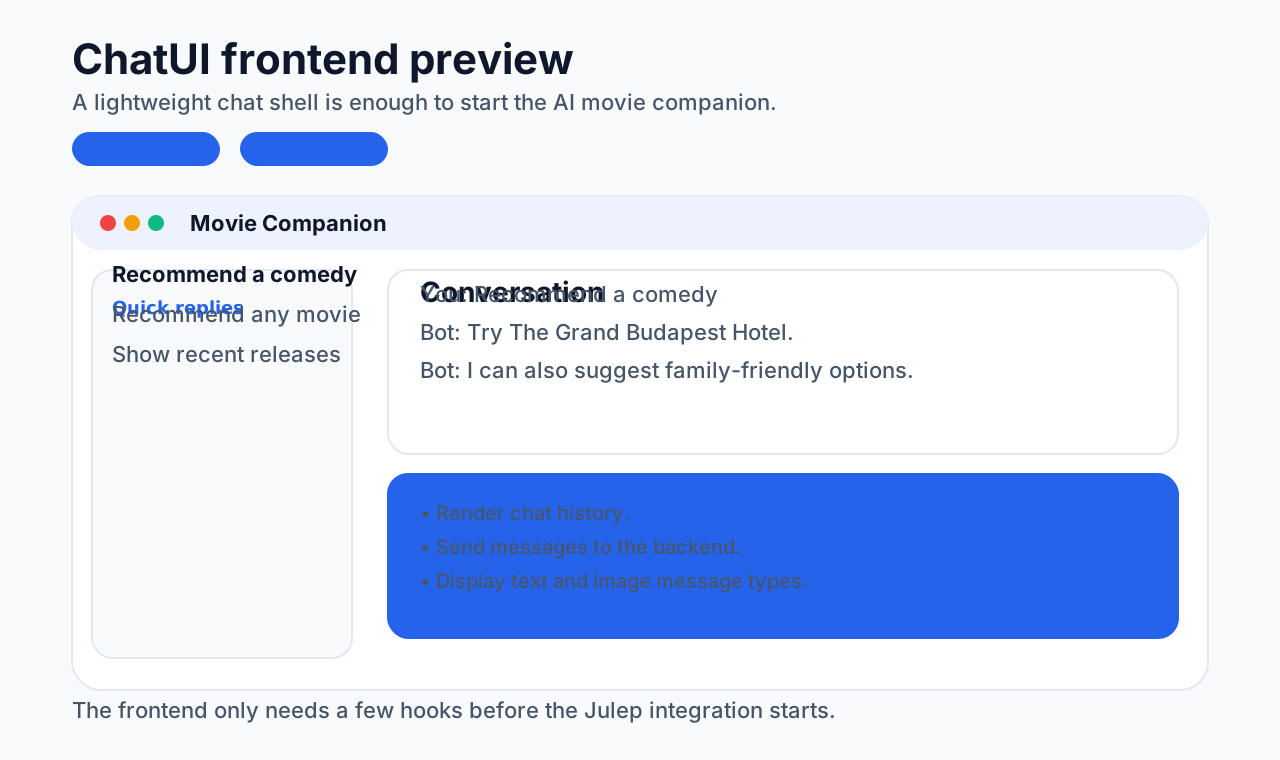
Now that the frontend is ready, the next step is integrating Julep.
Install backend dependencies
For this movie companion application, install:
express@julep/sdkbody-parsercorsdotenvaxios
bash
pnpm add express @julep/sdk cors body-parser dotenv axios -DIntegrate Julep
To use Julep, you first need an API key.
Go to:
Log in with your Google account and copy the API token shown in the top-right area.
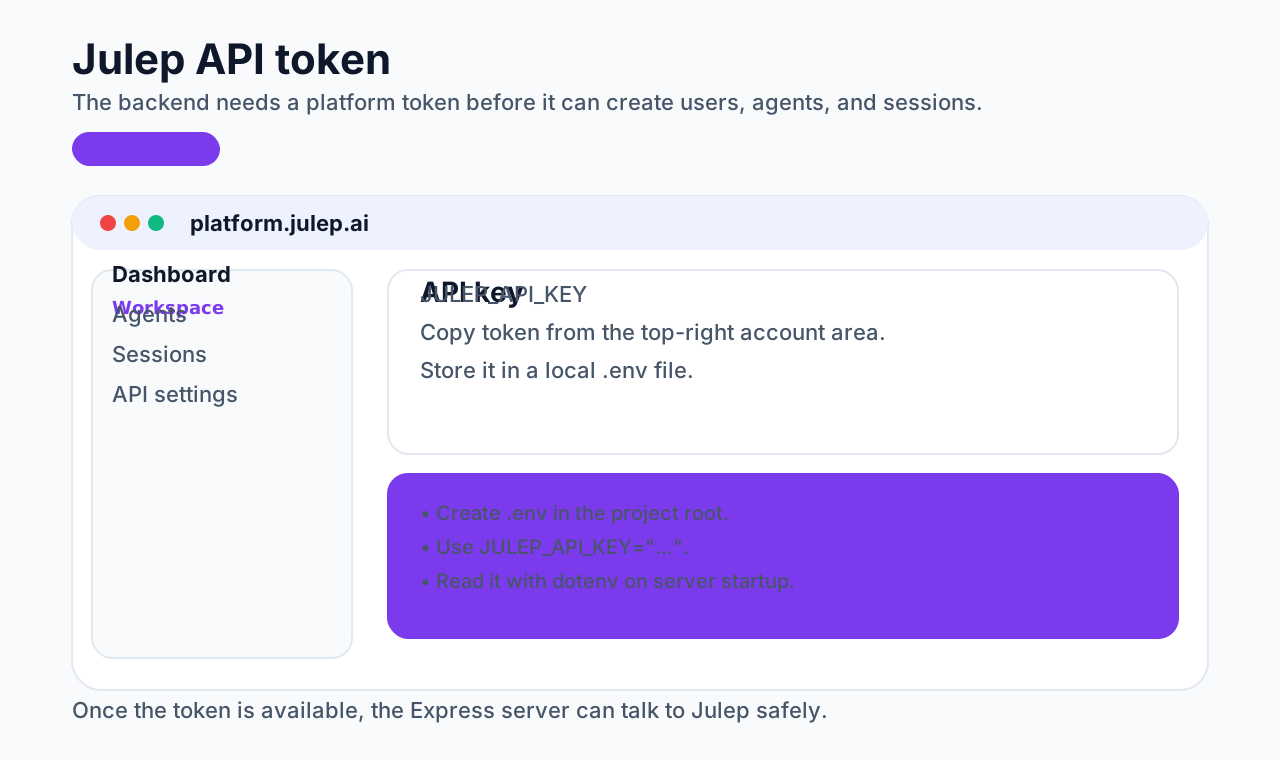
Create a .env file in the project:
plain
JULEP_API_KEY="api_key"Replace api_key with your real token.
Then create src/server.js.
Import dependencies
javascript
import express from "express";
import julep from "@julep/sdk";
import bodyParser from "body-parser";
import cors from "cors";
import { fileURLToPath } from "url";
import path from "path";
import dotenv from "dotenv";
Create the Julep client
javascript
const apiKey = process.env.JULEP_API_KEY;
const client = new julep.Client({ apiKey });
Create the Express server
javascript
const app = express();
app.use(bodyParser.json());
app.use(cors());
Add the /chat endpoint
javascript
app.post("/chat", async (req, res) => {
  try {
    const query = req.body.query;
  } catch (error) {
    res.status(500).send(error.message);
  }
});
Inside the handler, the first useful piece is just the user's query:
javascript
try {
  const query = req.body.query;
} catch (error) {
  res.status(500).send(error.message);
}
Create a user
In Julep, a user represents the person or system interacting with the app.
Julep provides users.create() for this:
javascript
const user = await client.users.create({
  name: "xiaohong",
  about: "Machine Learning Developer and AI Enthusiast",
  docs: [{ title: "AI Efficiency Report", content: "...", metadata: { page: 1 } }],
  metadata: { db_uuid: "1234" },
});
For this application:
javascript
const user = await client.users.create({
  name: "Xiaoxu",
  about: "Frontend engineer",
});
Create an agent
An agent acts as the intelligence layer between the user and the application.
For example:
javascript
const agent = await client.agents.create({
  name: "Movie suggesting assistant",
  model: "gpt-4-turbo",
});
Julep supports multiple LLMs, so this is only one possible choice.
Create a session
A session represents one conversational context between the user and the agent.
javascript
const session = await client.sessions.create({
  agentId: agent.id,
  userId: user.id,
  situation: "You are a movie companion. Tell people about the movies they ask for and recommend movies to them.",
});
The situation field matters because it gives the agent contextual framing for the conversation.
Get the response message
Once the user, agent, and session exist, the actual conversation can happen through sessions.chat().
javascript
const chatParams = {
  messages: [
    {
      role: "user",
      name: "Ayush",
      content: query,
    },
  ],
};
const chatResponse = await client.sessions.chat(session.id, chatParams);
const responseMessage = chatResponse.response[0][0].content;

res.json({ response: responseMessage });
The message object includes:
role:"user"name: the user's namecontent: the actual question
Then the response is extracted from chatResponse and returned to the frontend.
Error handling
Use a catch block to return backend errors cleanly:
javascript
catch (error) {
  res.status(500).json({ error: error.message });
}
Start the server
javascript
app.listen(3000, () => {
  console.log("Server is running on port 3000");
});
That hosts the backend at localhost:3000.
Run the application
Start the backend first:
bash
node src/server.jsThen run the frontend:
bash
npm run devThis will bring the project up locally.
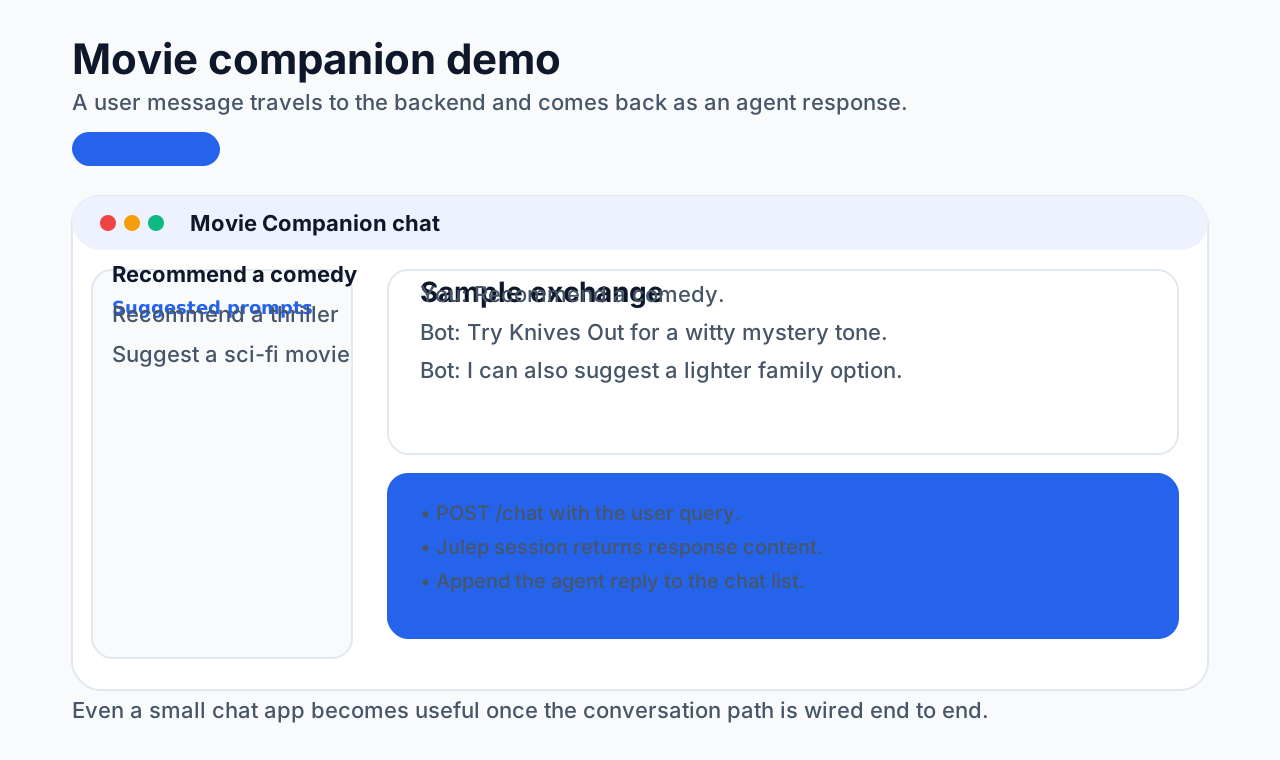
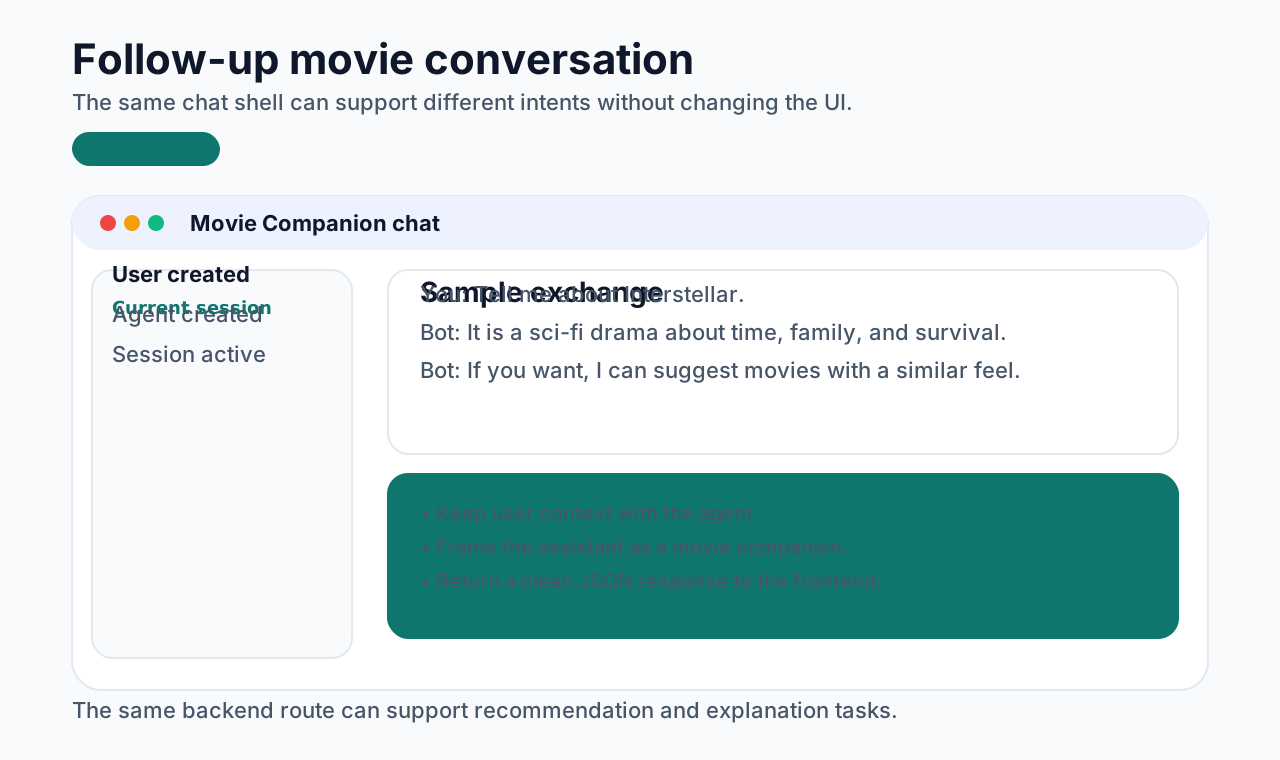
Demo screenshots:
Source code
https://github.com/Xutaotaotao/movie-companion-app
Closing
By combining ChatUI and Julep, you can build an AI application with both:
- an interactive frontend
- a stronger AI backend capability
The whole process involves UI work on the frontend, AI integration on the backend, and API-based communication between the two.
Once the project works locally, it can be deployed and opened up to real users. This article is only an introductory version. A production-grade version would still need more polishing and optimization, but it is already enough to help you build your own small AI application from scratch.